Section 5
5.1Inspection (Before Loading)
Beware of unannounced starting of the evaporator and condenser fans. The unit may cycle the fans and compress or unexpectedly as control requirements dictate.
1.Check inside for the following:
•Check channels or “T” bar floor for cleanliness. Channels must be free of debris for proper air circulation.
•Check container panels, insulation and door seals for damage. Effect permanent or temporary repairs.
•Visually check that the evaporator fan motor mounting bolts are properly secured (see Section 7.15).
•Check for visible corrosion on the evaporator stator and fan deck (see Section 7.16).
•Check for dirt or grease on evaporator fans or fan deck and clean if necessary.
•Check evaporator coil for cleanliness or obstructions. Wash with fresh water.
•Check defrost drain pans and drain lines for obstructions and clear if necessary. Wash with fresh water.
•Check panels on refrigeration unit for loose bolts and condition of panels. Make sure T.I.R. devices are in place on access panels.
2.Check condenser coil for cleanliness. Wash with fresh water.
3.Open control box door. Check for loose electrical connections or hardware.
4.Check color of moisture-liquid indicator.
Do not attempt to remove power plug(s) before turning OFF start-stop switch (ST), unit circuit breaker(s) and external power source.
Make sure the power plugs are clean and dry before connecting to power receptacle.
5.2.1Connection To 380 / 460 VAC Power
1.Make sure start-stop switch (ST on control panel) and circuit breaker (CB-1 in the control box) are in position “0” (OFF).
2.Plug the 460 VAC (yellow) cable into a de-energized 380/460 VAC, 3-phase power source. Energize the power source. Place circuit breaker (CB-1) in position “I” (ON). Close and secure control box door.
5.2.2Connection To 190 / 230 VAC Power
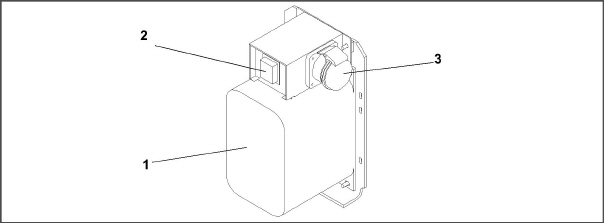
An autotransformer (see Figure 5.1) is required to allow operation on nominal 230 volt power. It is fitted with a 230 VAC cable and a receptacle to accept the standard 460 VAC power plug. The 230 volt cable is black in color while the 460 volt cable is yellow. The transformer may also be equipped with a circuit breaker (CB-2). The transformer is a step up transformer that will provide 380/460 VAC, 3-phase, 50/60 Hz power to the unit when the 230 VAC power cable is connected to a 190/230 VAC, 3-phase power source.
1.Make sure that the start-stop switch (ST, on control panel) is in the “0” position (Off).
2.Make sure the circuit breakers CB-1 (in the control box) and CB- 2 (on the transformer) are in position “0” (OFF).
3.Plug in and lock the 460VACpower plug at the receptacle on the transformer.
4.Plug the 230 VAC (black) cable into a de-energized 190/230 VAC, 3-phase power source and energize the power source.
5.Set circuit breakers CB-1 and CB-2 to position “I” (ON).
6.Close and secure control box door.
1)Dual Voltage Modular Autotransformer
2)Circuit Breaker (CB- 2) 230-Volt
- - - - -
5.3Adjust Fresh Air Makeup Vent
The purpose of the fresh air makeup vent is to provide ventilation for commodities that require fresh air circulation. The vent must be closed when transporting frozen foods.
Air exchange depends on static pressure differential, which will vary depending on the container and how the container is loaded.
Units may be equipped with a vent position sensor (VPS). The VPS determines the position of the fresh air vent (upper or lower, as equipped) and sends data to the controller display.
5.3.1Upper Fresh Air Makeup Vent
Two slots and a stop are designed into the Upper Fresh Air disc for air flow adjustments. The first slot allows for a 0 to30%air flow; the second slot allows for a 30 to 100% air flow.
To adjust the percentage of air flow, loosen the wing nut and rotate the disc until the desired percentage of air flow matches with the arrow. Tighten the wing nut.
To clear the gap between the slots, loosen the wing nut until the disc clears the stop.
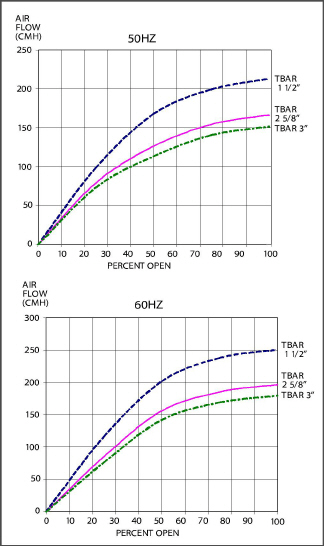
See Figure 5.2 for air exchange values for an empty container.
Higher values can be expected for a fully loaded container.
Figure 5.2 Upper Fresh Air Make Up Flow Chart
5.3.2Lower Fresh Air Makeup Vent
a. Full Open or Closed Positions
Maximum air flow is achieved by loosening the wing nuts and moving the cover to the maximum open position (100% position). The closed position is 0% air flow position. The operator may also adjust the opening to increase or decrease the air flow volume to meet the required air flow.
b. Reduced Flow for Lower Fresh Air Makeup
In order to prevent inaccurate display readings on units equipped with a Vent Position Sensor (VPS), ensure that the rack and pinion drive of the VPS is not disrupted when adjusting the air makeup vent.
Do not loosen the hex nut beyond its stop. Doing so may cause inaccurate display readings and errors in DataCORDER reports.
Similar to the Upper Fresh Air Makeup vent, two slots and a stop are designed into the Lower Fresh Air slide for air flow adjustments. The first slot allows for a 0 to 25% air flow; the second slot allows for a 25 to 100% air flow. To adjust the percentage of air flow, loosen the hex nut and rotate the disc until the desired percentage of air flow matches with the arrow. Tighten the hex nut. To clear the gap between the slots, loosen the hex nut until the disc clears the stop.
On some models the air slide is supplied with two adjustable air control discs. The fresh air makeup can be adjusted for 15, 35, 50 or 75 cubic meters per hour (CMH). The air flow has been established at 60 Hz power and 2-1/2 inch T bar and with 15 mm (0.6 inch) H2O external static above free blow.
Loosen the hex nut, adjust each disc to the required air flow, then tighten hex nut.
The main air slide is in the fully closed position during reduced air flow operation when equipped with air control discs.
c. Air Sampling for Carbon Dioxide (CO2) Level
Loosen hex nuts and move the cover until the arrow on the cover is aligned with the “atmosphere sampling port” label. Tighten the hex nuts and attach a 3/8 in. hose to the sampling port.
If the internal atmosphere content has reached an unacceptable level, the operator may adjust the disc opening to meet the required air flow volume to ventilate the container.
The vent position sensor (VPS) allows the user to determine the position of the fresh air vent via Cd45. This function code is accessible via the CODE SELECT key.
The vent position will display for 30 seconds whenever motion corresponding to 5 CMH (3 CFM) or greater is detected. It will scroll in intervals of 5 CMH (3 CFM). Scrolling toCd45 will display the Fresh Air Vent Position.
The position of the vent will be recorded in the DataCORDER whenever the unit is running under AC power and any of the following:
•Trip start
•On every power cycle
•Midnight
•Manual changes greater than 5 CMH (3 CFM) remaining in the new position for at least four minutes
The user has four minutes to make necessary adjustments to the vent setting. This time calculation begins on the initial movement of the sensor. The vent can be moved to any position within the four minutes. On completion of the first four minutes, the vent is required to remain stable for the next four minutes. If vent position changes are detected during the four-minute stability period, AL50 will be generated. This provides the user with the ability to change the vent setting without generating multiple events in the DataCORDER.
Procedures and technical information related to the eAutoFresh™ venting system can be found in the T-342 eAutoFresh Manual, located in the Literature section of the Container Refrigeration website. To find the manual from the Literature section, click on Options > eAutoFresh.
The eAutoFresh system allows the opening and closing of the mechanical air vent slide. The opening and closing of the slide is determined by the mode selected through Cd43.
The modes of operation are OFF, USER, TEST,DELAY, and GASLIMIT. Each mode of operation has submenus with selectable parameters. Not all parameters are available in each submenu.
Upon power up, the controller will fully close the eAutoFresh air vent. Nine seconds after power up, the controller will check if there is a carbon dioxide (CO2) sensor connected.When a CO2 sensor is detected, the controller will enable access to the Gas Limit mode of operation. If no sensor is detected, the only modes of operation available will be Test, User, and Delay. The controller will then resume operation in the last mode of operation before power interruption.
5.4.1eAutoFresh Pre-Trip Inspection
Pre-trip testing of the eAutoFresh system is performed during Pre-Trip test P0. Operation of the system may be observed during this test.
Upon initiation of Pre-Trip P0, the current state will be saved and the vent will fully close. This will be followed by two sequences of opening to 100% and returning to the closed position. No other eAutoFresh mode of operation will be available until the two cycles of opening and closing have completed. Upon termination of the test, the vent will open to the previous state and operation will return to the previous mode.
If the last mode was gASLM, the vent will open to the preset FLO setting, the controller will start taking new readings and control based on those readings.
5.4.2eAutoFresh Start-Up Procedure
To start the system, do the following:
1.Press the CODE SELECT key.
2.Press the Up or Down Arrow key until “Cd43” is displayed, then press the ENTER key.
3.Press the Up or Down Arrow key to access the desired mode of operation. When the mode operation is displayed press the ENTER key to access the submenu parameters.
5.4.3eAutoFresh Modes of Operation
When setting any mode of operation, complete the entire process to ensure all parameters are set.
a. OFF
A setting of OFF will disable all automatic venting operations. The eAutoFresh vent will be driven fully closed and the eAutoFresh opening set to 0 CMH in Cd44. This is the default mode whenever a frozen mode of operation has been selected. When the frozen set point is selected, the current eAutoFresh setting is saved. The vent position will be restored when a perishable set point is selected.
b. USER
The USER mode provides ventilation for commodities that require fresh air circulation. The flow rate can be accessed through the submenu if a perishable set point has been selected. To set the flow rate, press the ENTER key to activate the selection mode. When FLO appears in the left hand window, use the UP or DOWN arrow key to scroll to the desired opening. The range is from 0 to 220CM (0 to 129CF) in increments of 5. Press the ENTER key to set the value and begin operation.
c. TEST
TEST mode allows the operator to test the movement of the mechanical slide air vent and calibrate the CO2 sensor.
tESt - When “tESt” appears in the left window, press the ENTER key to begin the test. The eAutoFresh slide will open fully and then return to the closed position. The test may be observed by the operator to ensure proper operation of the vent. After completion of the TEST, the unit will return to the previous mode of operation.
It is recommended that the calibration procedure only be performed during Pre-trip or when the container has been fully vented.
CAL will attempt to calibrate the CO2 sensor. When “CAL” is selected the display will flash “CAL”. The operator is to hold the ENTER key for 5 seconds. The display will stop flashing and read “CAL” for 5 seconds. The microprocessor will read the CO2 value, and then compare that value to a known zero value. If the sensor is within the calibration parameter range, the microprocessor will determine the appropriate offset for the sensor. If the sensor is outside of this range, for example if the container is loaded or has a high level of CO2, the controller will flash “NOCAL” for 5 seconds then revert to the previous mode of operation.
d. DELAY
In DELAY mode, the operation of the eAutoFresh system will be delayed for a set amount of time. This allows time for the cargo to reach set point. In DELAY mode, the eAutoFresh vent will open to the stored (FLO) value when the return air temperature sensor (RTS) is at or below set point plus the return offset value (rtn) or the delay time (tIM), whichever comes first. The eAutoFresh vent will be fully closed when return air temperature is greater than the set point plus the offset temperature (rtn).
To set the unit in Delay mode, scroll until “DELAY” appears in the left window, press the ENTER key to activate the submenu. The first selection is the amount of time (tIM) for the delay. Select the amount of time for the delay by using the UP and DOWN arrow keys. The range is from 1 to 72 hours in 1 hour increments. Press the ENTER key to set the value and move to the FLO rate. Use the UP or DOWN arrow key to scroll to the desired FLO rate. The range is from 0 to 220CM (0 to 129CF) in increments of 5 and 3 respectively. Press the ENTER key to set the value and move to the return temperature offset. Use the UP or DOWN arrow key to scroll to the desired rtn rate. The range of offset is from 0.6°C to 2.8°C (1.0° F to 2.8° F) in 0.1° increments. Press the ENTER key to set the value and begin operation.
e. GAS LIMIT (gASLM)
In GAS LIMIT mode, access to the submenu is available provided a perishable set point has been selected, and a valid reading is detected from the CO2 sensor. In “Gas limit” mode the microprocessor will monitor and limit the level of CO2 in the container by opening and closing the eAutoFresh vent. The vent will open to the (FLO) setting once the unit has completed initial temperature pull down or if the cargo temperature is within 5°C of set point and the CO2 level has reached the max limit or if the O2 level has reached the lower limit. After the first 15 minutes of the vent opening the controller will again evaluate the level of CO2, and/or O2 levels. If after the first 15 minutes the gas limit values are satisfied, the vent will close, if either gas limit has not been satisfied within 15 minutes the air exchange vent will open in 10 CMH increments every 15 minutes until both gas concentrations are satisfied. Once all limits are satisfied the vent will return to the closed position. If conditions are not met with the slide open 100% for 90 minutes AL29 will be activated.
To operate in GAS LIMIT mode, scroll until gASLM appears in the left window, and press the ENTER key to activate the submenu. The first selection is the maximum CO2 level (CO2LM). Select the maximum CO2 level by using the Up and Down Arrow keys. The range is from 0 to 19% in 1% increments. Press ENTER to set the value and move to the minimum O2 level (O2LM). The range is from 2% to 20% in 1% increments. Press ENTER to set the value and move to the FLO rate. Use the UP or DOWN arrow key to scroll to the desired FLO rate. The range is from 0 to 220CM (0 to 129CF) in increments of 5 and 3 respectively. Press ENTER to set the value and begin operation.
Operational Parameters (Sub Menu Options):
FLO indicates the opening to which the slide will move based on the stored value in CMH (in increments of 5) or CFM depending on the selection of Cd46 (Airflow display units), Cd28 (Metric/Imperial) or the pressing of the deg C/F key. CFM is displayed as CF, CMH is displayed as CM.
tIM is the time delay prior to the door opening. The time range is from 1 to 72 hrs in 1 hr increments.
CO2LM is the maximum level of CO2 that is allowed for the cargo. The range is from 0% to 19% in 1% increments, the default setting is 10.
O2LM is the minimum level of O2 that is allowed for the cargo. The range is from 2% to 20% in 1% increments, the default setting is 10.
Rtn is an offset value used to expand the return air temperature value to compensate for the fresh air entering the container. The allowable range is from 0.6°C to 2.8°C or 1.0°F to 5.0°F in 0.1° increments the default setting is 2.8°C (5°F).
5.5Connect Water-Cooled Condenser
The water-cooled condenser is used when cooling water is available and heating the surrounding air is objectionable, such as in a ship’s hold. If water-cooled operation is desired, connect in accordance with the following sub-paragraphs.
5.5.1Water-Cooled Condenser with Water Pressure Switch
1.Connect the water supply line to the inlet side of condenser and the discharge line to the outlet side of the condenser (see Figure 3.5).
2.Maintain a flow rate of 11 to 26 liters per minute (3 to 7 gallons per minute). The water pressure switch will open to de-energize the condenser fan relay. The condenser fan motor will stop and will remain stopped until the water pressure switch closes.
3.To shift to air-cooled condenser operation, disconnect the water supply and the discharge line to the water-cooled condenser. The refrigeration unit will shift to air-cooled condenser operation when the water pressure switch closes.
5.5.2Water-Cooled Condenser with Condenser Fan Switch
1.Connect the water supply line to the inlet side of condenser and the discharge line to the outlet side of the condenser (see Figure 3.5.)
2.Maintain a flow rate of 11 to 26 lpm (3 to 7 gpm).
3.Set the condenser fan switch to position “O.” This will de-energize the condenser fan relay. The condenser fan motor will stop and remain stopped until the CFS switch is set to position “I.”
When condenser water flow is below 11 lpm (3 gpm) or when water-cooled operation is not in use, the CFS switch MUST be set to position “1” or the unit will not operate properly.
4.To shift to air-cooled condenser operation, stop the unit, set the CFS switch to positioI” and restart the unit. Disconnect the water lines to the water-cooled condenser.
5.6Connect Remote Monitoring Receptacle
If remote monitoring is required, connect the remote monitor plug at the unit receptacle, see item 9, Figure 3.6.
When the remote monitor plug is connected to the remote monitoring receptacle, the following remote circuits are energized:
Circuit |
Function |
|---|---|
Sockets B to A |
Energizes remote cool light |
Sockets C to A |
Energizes remote defrost light |
Sockets D to A |
Energizes remote in-range light |
5.7Starting and Stopping Instructions
Make sure that the unit circuit breaker(s) (CB-1 & CB-2) and the START-STOP switch (ST) are in the “O” (OFF) position before connecting to any electrical power source.
The electronic phase detection system will check for proper compressor rotation within the first 30 seconds. If rotation is not correct, the compressor will be stopped and restarted in the opposite direction. If the compressor is producing unusually loud and continuous noise after the first 30 seconds of operation, stop the unit and investigate.
1.With power properly applied, the fresh air vent set and (if required) the water-cooled condenser connected (See Section 5.2, Section 5.3 & Section 5.5), place the START-STOP switch to “I” (ON).
2.The Controller Function Codes for the container ID (Cd40), software version (Cd18) and unit model number (Cd20) will be displayed in sequence.
3.Continue with Start Up Inspection (see Section 5.8).
1.To stop the unit, place the START-STOP switch in position “0” (OFF).
Check rotation of condenser and evaporator fans.
5.8.2Check Controller Function Codes
Check, and if required, reset controller Function Codes (Cd27 through Cd39) in accordance with desired operating parameters. See Table 4–5, Controller Function Codes.
5.8.3Start Temperature Recorder
1.Open recorder door and check battery of electronic recorder. Be sure key is returned to storage clip of mechanical recorder.
2.Lift stylus (pen) by pulling the marking tip outward until the stylus arm snaps into the retracted position.
3.Install new chart, making sure chart is under the four corner tabs. Lower the stylus until it has made contact with the chart. Close and secure the recorder door.
1.Check and, if required, set the DataCORDER Configuration in accordance with desired recording parameter (see Section 4.8.3).
2.Enter a “Trip Start.” To enter a “Trip Start,” do the following:
a.Press the ALT MODE key. When the left display shows “dC”, Press the ENTER key.
b.Scroll to Code dC30.
c.Press and hold the ENTER key for five seconds.
d.The “Trip Start” event will be entered in the DataCORDER.
Allow the unit to run for five minutes to stabilize conditions, and then perform a Pre-trip diagnosis in accordance with Section 5.9.
Pre-trip inspection should not be performed with critical temperature cargoes in the container.
When PRE-TRIP key is pressed, economy, dehumidification and bulb mode will be deactivated. At the completion of Pre- trip activity, economy, dehumidification and bulb mode must be reactivated.
Pre-trip diagnosis provides automatic testing of the unit components using internal measurements and comparison logic. The program will provide a “PASS” or “FAIL” display to indicate test results.
The testing begins with access to a Pre-trip selection menu. The user may have the option of selecting one of two automatic tests.
These tests will automatically perform a series of individual Pre-trip tests. The user may also scroll down to select any of the individual tests.
When only the short sequence is configured, it will appear as “AUtO” in the display. Otherwise “AUtO1” will indicate the short sequence and “AUtO2” will indicate the long sequence. The test short sequence will run tests P0 through P6. The long test sequence will run tests P0 through P10.
A detailed description of the Pre-trip test codes is listed in Table 4–7. If no selection is made, the Pre-trip menu selection process will terminate automatically. However, dehumidification and bulb mode must be reactivated manually if required.
Scrolling down to the “rSLts” code and pressing ENTER will allow the user to scroll through the results of the last Pre-trip testing run. If no Pre-testing has been run (or an individual test has not been run) since the unit was powered up, “- - - -” will be displayed.
Pre-trip may also be initiated via communications. The operation is the same as for the keypad initiation described below except that should a test fail, the Pre-trip mode will automatically terminate. When initiated via communications, a Pre-trip test may not be interrupted with an arrow key, but the Pre- trip test can be terminated with the PRE-TRIP key.
5.9.1Prior to Starting a Pre-Trip
Verify the following conditions prior to starting a pre-trip.
•Unit voltage (Cd07) is within tolerance.
•Unit amperage draw (Cd04, Cd05, Cd06) are within expected limits.
•All alarms are cleared and rectified.
1.Press the PRE-TRIP key to accesses the pre-trip test selection menu.
2.To Run an Automatic Test: Scroll through the selections by pressing the Up or Down Arrow keys to display AUTO, AUTO 1, AUTO 2 or AUTO 3 as desired, then press the ENTER key.
•The unit will execute the series of tests without any need for direct user interface. These tests vary in length, depending on the component under test.
•While tests are running, “P#-#” will appear on the left display; the #’s indicate the test number and sub-test. The right display will show a countdown time in minutes and seconds, indicating the amount of time remaining in the test.
When an Auto 1 Pre-trip test runs to completion without a failure, the unit will exit Pre-trip mode and return to normal control operation. However, dehumidification and bulb mode must be reactivated manually if required.
When Pre-trip test Auto2 runs to completion without being interrupted, the unit will terminate Pre-trip and display “Auto 2” “end.” The unit will suspend operation until the user presses the ENTER key!
3.When an automatic test fails, it will be repeated once. A repeated test failure will cause “FAIL” to be shown on the right display, with the corresponding test number to the left. Press the Down Arrow key to repeat the test, the Up Arrow key to skip to the next test, or the PRE-TRIP key to terminate testing. The unit will wait indefinitely or until a command is entered.
When a failure occurs during automatic testing, the unit will suspend operation awaiting operator intervention.
4.To Run an Individual Test: Scroll through the selections by pressing the Up or Down Arrow keys to display an individual test code. Press the ENTER key when the desired test code is displayed.
•Individually selected tests, other than the LED / Display test, will perform the operations necessary to verify the operation of the component. At the conclusion, “PASS” or “FAIL” will be displayed. This message will remain displayed for up to three minutes, during which time a user may select another test. If the three minute time period expires, the unit will terminate pre-trip and return to control mode operation.
•While the tests are being executed, the user may terminate the pre-trip diagnostics by pressing and holding the PRE-TRIP key. The unit will then resume normal operation. If the user decides to terminate a test but remain at the test selection menu, the user may press the Up Arrow key. When this is done, all test outputs will be de-energized and the test selection menu will be displayed.
•Throughout the duration of any Pre-trip test (except during P-7 high pressure switch tests) the current limiting and pressure limiting are both active. The current limiting process is only active for P-7.
5.9.3Displaying Pre-Trip Test Results
1.Press the PRE-TRIP key to access the Pre-trip test selection menu. “SELCt Prtrp” will be displayed.
2.Press the Arrow keys until the message “P,” “rSLts” (Pre-trip results) is displayed.
3.Press the ENTER key. The results for all Pre-trip sub tests are available from this menu (1-0, 1-1, etc).
The results will be displayed as “PASS” or “FAIL” for all the tests run to completion since power up. If a test has not been run since power up, “- - - - -” will be displayed.
Once all Pre-test activity is completed, dehumidification and bulb mode must be reactivated manually if required.
A complete temperature probe check is performed during the P5 Pre-trip test. A probe check is also run at the end of a defrost cycle; the defrost light will remain on during this period. If supply probes are within limits and return probes are within limits, the unit will return to normal operation. During normal operation, the controller continuously monitors and compares adjacent temperature probe readings.
The probe check procedure consists of running the evaporator fans for up to eight minutes in order to compare the readings from the adjacent temperature probes. If a significant difference in temperature readings is detected between probes, a defrost cycle, followed by another probe check may be initiated. Any continued disagreement between probes will prompt the controller to invalidate the failed temperature probe, and the backup probe will be used for temperature control.
In Perishable Mode, both pairs of supply and return probes are monitored for probe disagreement. Probe disagreement is considered a difference of 0.5°C (0.9°F) or greater between the supply air sensors and/ or a difference of 2.0°C (3.6°F) between the return air sensors. Probe disagreement found in either pair can trigger a defrost probe check.
In Frozen Mode, only the controlling probes are considered. Disagreement of the controlling probes can trigger a defrost probe check, which will occur when the difference between the sensors is greater than 2.0°C (3.6°F). Normally, the controlling probes are the return probes but if both return probes are invalidated, the supply probes are used for control purposes. Probe disagreement of the non- controlling probe pair will not trigger a defrost probe check.
If after the defrost probe check the supply probes agree and return probes agree, all supply and return sensors are considered valid and the unit returns to normal control.
In the Case of Probe Disagreement:
If the supply probes disagree and the return probes agree, the controller will invalidate the worst supply probe. If the probe check is run as part of Pre-trip P-5, an alarm will be triggered for the invalidated probe. If it is a run time defrost probe check, the invalidated probe will be passed over and no alarm will be triggered. However, if the best supply probe is greater than 1.2°C (2.2°F) difference with respect to its return probes, the best supply probe is also invalidated. If unit is in Perishable Mode, a probe alarm will be triggered for both supply probes.
If the supply probes agree and the return probes disagree, invalidate the worst return probe. If the probe check is being run as part of Pre-trip P-5, an alarm will be triggered for the invalidated probe. If it is a run time defrost probe check, the invalidated probe will be passed over and no alarm will be necessary. If the best return probe is greater than 1.2°C (2.2°F) difference with respect to its supply probes, then the best return probe is also invalidated. If the unit is in perishable mode, a probe alarm will be triggered for both return probes.
5.11Emergency Bypass Operation
Emergency Bypass operation is used to override the controller, in the case of a controller malfunction, to keep the unit cooling. When Emergency Bypass is installed and turned on, the unit will remain in a continuous state of full cool until the Emergency Bypass switch is turned off.
To place the unit in the Emergency Bypass Operation:
1.Locate the connection diagram and connectors for the emergency bypass (EB) sensors behind the top left side of the compressor.
2.Disconnect the emergency bypass connector from the controller connector and attach it to the emergency bypass module connector (see Figure 5.3).
3.Locate the wire tire located at the EB switch in the control box.
4.Cut the wire tie, then place the EB switch in the On position.
5.Place the Mode Switch (MS) in the Full Cool position to enable the system for cooling.
6.Manually control container air temperature by cycling the Mode switch between Full Cool and evaporator Fans Only.
To operate the fans only, the MODE switch must be in the FANS ONLY position and the EMERGENCY BYPASS switch must be in the Bypass position.
The EBS module uses the system’s safety devices (high pressure switch, motor internal protectors, and heat termination thermostat) to protect the system while in Emergency Bypass Mode.
The unit will remain in the full cooling mode as long as the EB switch is in the On position and the Mode Switch is in the Full Cool position. If the cargo can be damaged by low temperatures, the operator must monitor container temperature and manually cycle operation as required to maintain temperature within required limits.
When the Emergency Bypass switch is in the Bypass position, the EBS will be enabled.
With the Mode switch in Full Cool mode, the following will occur simultaneously:
a.The EBS switch will enable EBS input.
b.The phase detection circuit will detect the phase rotation and close to provide power to the compressor contactor.
c.The condenser fan contact will close to energize the condenser contactor and provide power to the condenser fan motor.
d.The evaporator fan contact will close to energize the high speed evaporator contactor and provide power to the evaporator fan motor.
e.The EBS electronic module will operate the EEV to control superheat.
To return the unit to normal operation:
1.Locate the connectors behind the compressor.
2.Disconnect the Emergency Bypass connector from the EBS module connector and reconnect it to the controller connector (see Figure 5.3).
3.Inside the control box, place the EB switch in the Off position.
4.Re-install the wire tie at the switch mounting.
Figure 5.3 Diagram of Emergency Bypass Connections

5.12Automatic Cold Treatment (Option)
Cold Treatment has been employed as an effective post-harvest method for the control of Mediterranean and certain other tropical fruit flies. Exposing infested fruit to temperatures of 2.2°C (3.6°F) or below for specific time periods results in the mortality of various life stages for this group of insects.
Automated Cold Treatment (ACT) in the Carrier Transicold unit is a method to simplify the task of completing cold treatment by automating the process of changing the setpoints. ACT is set up through function code Cd51. Refer to Function Code table in this manual for Cd51 menu processing and displays.
ACT, setup with Cd51, and Automatic Setpoint Change (ASC), setup with Cd53, will not work simultaneously. Setting one will deactivate the other.
Procedure to Set ACT:
1.Enter the required cargo setpoint. It must be lower than the treatment temperature discussed in step 5.
2.Press the CODE SELECT key.
3.Use the Arrow keys to scroll to Cd51, and then press the ENTER key.
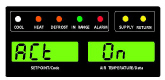
4."ACt" is now displayed in the left display and the right will display "Off". Use the Arrow keys to bring up "On" in the right display and press the ENTER key.
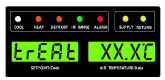
5.“trEAt" is now displayed in the left display and the right will be flashing the last setting (shown as XX.X°C). Use the Arrow keys to select the desired cold treatment setpoint and press the ENTER key.
"trEAt" is the maximum value that the USDA probes need to remain below, to pass the Cold Treatment protocol. For instance, if the treat value is set at 35.0°F (1.7°C) then the USDA probe temperatures must remain below 35.0°F (1.7°C) to pass.
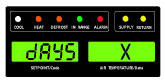
6."dAyS" is now displayed in the left display and the right will be flashing. Use the Arrow keys to select the desired days for cold treatment and press the ENTER key.
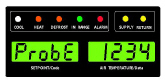
7."ProbE" is now displayed in the left display and the right will display the probe numbers that are connected. Press the ENTER key. For instance, if "1234" is displayed, then all four of the probes are connected.
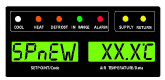
8."SPnEW" is now displayed in the left display and the right will be flashing. Use the Arrow keys to select the desired setpoint after the cold treatment process has successfully completed and press the ENTER key. This would be the final temperature prior to the delivery of the cargo.
9.Cd51 is now displayed in the left display and the right will display days / hours remaining in cold treatment.
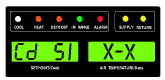
10.The unit will start to countdown once all detected USDA probes have reached the specified cold treatment temperature. The cold treatment process will continue until the specified number of days is reached. During operation, Cd51 will show the number of days and hours remaining in the cold treatment.
Once the cold treatment process has been initiated, setpoint change via the keypad is disabled.
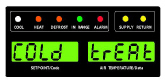
11.While the unit is operating in ACT mode, the left hand display will alternate between "COLd" and setpoint. The right hand display will alternate between "trEAt" and the cargo temperature. Once the treatment time has been completed, the setpoint temperature will increase to the "SPnEW" setting chosen in step 8.
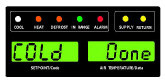
12.When the cold treatment process is complete, the "SPnEW" setpoint will be displayed in the left hand display and cargo temperature in the right hand display, alternating with "COLd" "Done". "COLd" "Done" will continue to alternate with the setpoint and cargo temperature until ACT is turned off.
Procedure to Turn ACT OFF:
ACT will be automatically turned off with a TripStart, or if a Pretrip is initiated.
1.To manually turn ACT Off, press the CODE SELECT key.
2.Use the Arrow keys to scroll to Cd51, and then press the ENTER key.
3.Use the Arrow keys to bring up "Off" in the right display and press the ENTER key.
5.13Automatic Setpoint Change (ASC)
Automatic Setpoint Change (ASC) allows up to 6 setpoint changes to be pre-programmed over defined periods of time using Cd53.
1.Press the CODE SELECT key.
2.Use the Arrow keys to scroll to Cd53, then press the ENTER key.
3.Use the Arrow keys to scroll to ON, then press the ENTER key. If ASC is already ON, selecting OFF will terminate ASC.
4.Select the desired number of setpoint changes (nSC) by scrolling through the available “flashing” options (1-6) in the right display, then press the ENTER key.
5.Select the initial setpoint: With (SP 0) in the left display, select by scrolling to the desired “flashing” setpoint in the right display and press ENTER.
6.Select the days desired for initial setpoint (SP 0): With (DAY 0) in the left display, select by scrolling to the desired “flashing” days (1 to 99) in the right display and press ENTER.
7.Select the next setpoint (SP 1): With (SP 1) in the left display, select by scrolling to the desired “flashing” setpoint in the right display and press ENTER.
8.Continue to select each additional setpoint.
9.Select a final setpoint (SP x): With (SP x) in the left display, select by scrolling to the desired “flashing” setpoint in the right display and press ENTER.
While the unit is operating in ASC mode, the left hand display will alternate between current unit setpoint and “ASC”. The right hand display will alternate between current control temperature and “ACtvE”. The user can determine the amount of time left at the current setpoint by selecting Cd53. The amount of time left will be displayed in the right display (XX (days) / XX (hours). By sequentially pressing ENTER, set parameters can be viewed.
At completion of ASC mode, the left hand display will alternate between current unit setpoint “ASC”. The right hand display will alternate between current control temperature and “Done”.
The display will remain this way until ASC is turned off. The user can determine the date of completion by selecting Cd53. With (done) in the left display, the date of completion will be displayed in the right display (Month / Day).
ASC can be manually turned off by selecting Cd53, scrolling to “Off” and pressing the ENTER key.
ACS will be automatically turned off after three days without power, or if a Pre-trip is initiated.
ACS (Cd53) will work independently of Automatic Cold Treatment (ACT) (Cd51). Setting one will deactivate the other.